

Co-Founder Setup (Claude)
This setup is easiest on desktop.
When finished, you can use the co-founder on any device.
Step 1: Open the Co-Founder Setup Document
Step 2: Make a Copy
Select File -> Make a copy.

Rename the document "[Your Business] Co-Founder".
Then select "Make a copy".

Step 3: Create a Project
In Claude, select "Projects".

Select "New project".

Give a name to the project, like "Co-Founder".
Then select "Create project".

Step 4: Add System Prompt
Select "System Prompt" in the left panel.
Then, copy the system prompt.

In Claude, click the + icon next to "Instructions".

Paste the system prompt into the instructions section.
Then select "Save instructions".
.png)
Step 5: Complete the Business Pillars
Fill in the details for each pillar of the setup:
-
Business Core
-
Solution Strategy
-
Market Entry & Growth
-
Brand Expression
-
Management System
-
Project Monitoring Framework

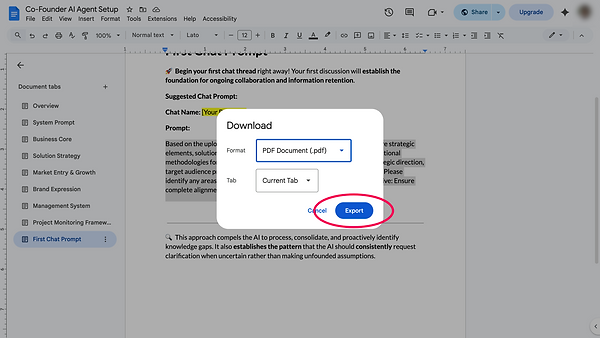
Step 6: Download the Setup
When finished, go to File -> Download -> PDF Document (.pdf).

Then select "Export".
Step 7: Add Setup to Co-Founder
In Claude, select the + icon next to "Files".
Then select "Upload from device".
Select the co-founder setup document from your device.

Step 8: Start Your First Chat
After uploading your setup, initiate your first chat by first copying the prompt in the final tab titled "First Chat Prompt".

Paste the First Chat Prompt into a new Claude chat.
Then start the conversation.

The chat will walk you through a series of questions to ensure absolute clarity on:
-
What it knows about you
-
Where it needs clarification
-
What to expect moving forward
Setup is complete. You’re now positioned for dramatically better, highly targeted AI insights that help you avoid expensive strategic errors and capture high-value returns.